
We're switching your router to a new UniFi router. This guide walks you through every step. Please have this page open on your phone (or printed) during the swap — we'll be on the phone with you the whole time.
Items to gather before we start the swap
- A small pointy object - a paperclip or SIM-eject tool, for example (may be needed for a possible reset)
- Your phone
- Access to the network closet where the router lives
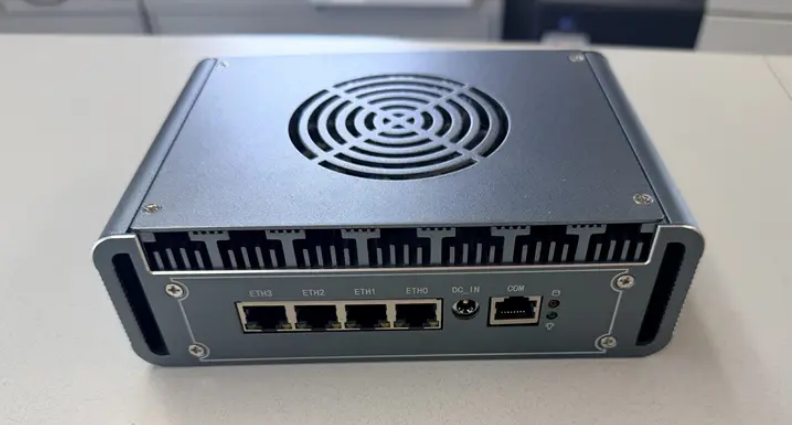
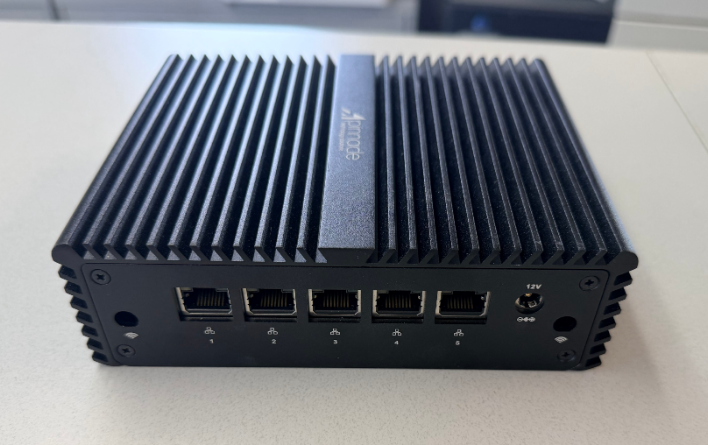
- Photograph of the old router
- Before unplugging anything, take a clear photo of your existing router and every cable plugged into it. Text it to us - 260-205-8900. This is your safety net if we need to fall back and reconnect the old router. It will also guide you on what ports on the old router plug into what ports on the new router
- See these two example pictures of what the old router should look like
- Power Up the New Router
- Plug ONLY the power cable into the new Ubiquiti router - no network cables yet
- Make sure you plug into a battery-enabled port on your UPS
- Wait for the light to turn solid blue (We will be watching the time and have you reset the router if it doesn't turn blue in roughly 90 seconds)
- Still Not Solid Blue after 90 seconds?
- Find the small reset button next to LAN1 on the router
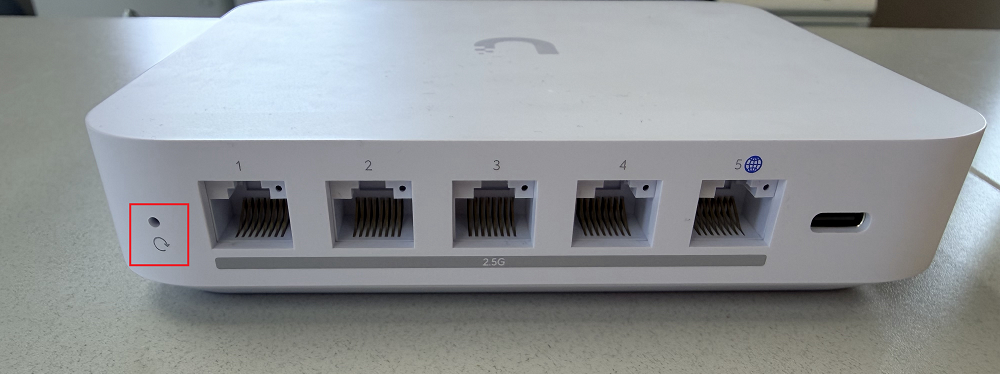
- Using your small pointy object, hold the button for about 10 seconds
- Release once the light starts blinking white
- Move the WAN1 Cable
- Unplug the WAN1 cable from the OLD router (we'll direct you on which cable this is)
- Plug it into the port labeled WAN1 on the NEW router
- Check for a link light on that port - tell us what you see
- Don't move on until we direct you to
- Move the LAN1 Cable
- Unplug the LAN1 cable from the OLD router (we'll direct you on which cable this is)
- Plug it into the port labeled LAN1 on the NEW router
- Check for a link light on that port - tell us what you see
- Don't move on until we direct you to
- Move Any Additional Connections (e.g. WAN2)
- If you have a second Internet connections repeat the same process as section 4
- Final Check
- Open a web browser on any computer on your network, and confirm a website loads normally
- Make sure your phones are working properly
- Let us know it's working - we'll finish a few things on our end and let you know that you're good to go!