
Once you're signed in, UniFi Endpoint is where you'll unlock doors and manage the access your organization has granted you.
Note: Your home screen is empty until you add doors as widgets.
Your Home Screen
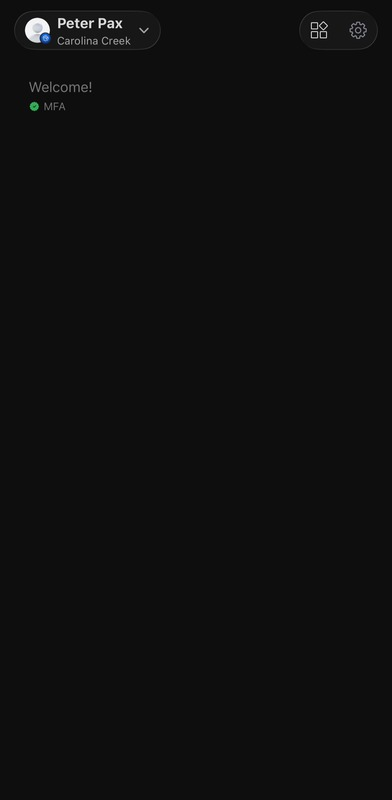
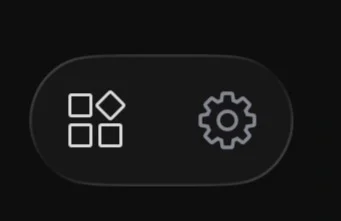
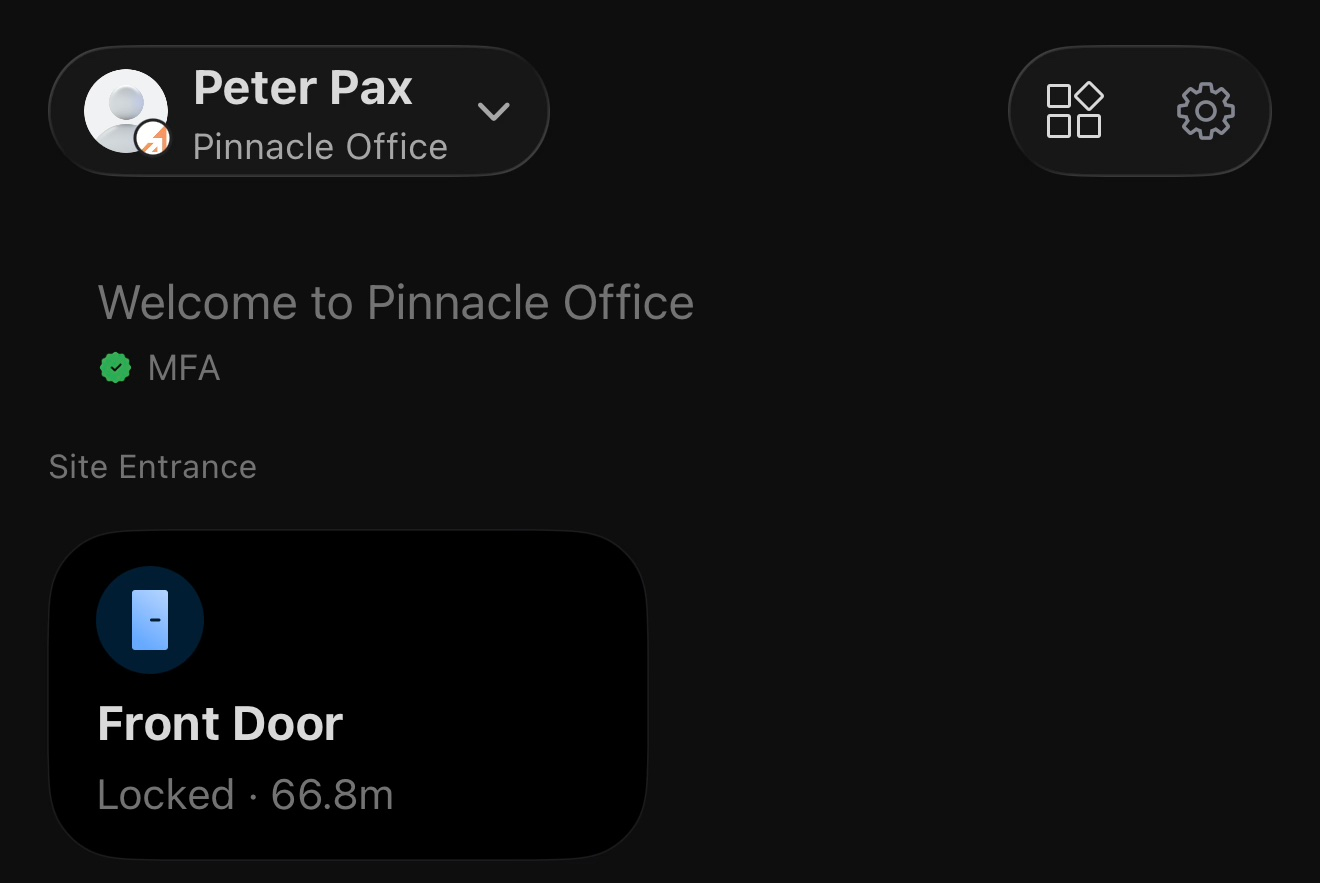
After signing in, you'll see your name and site in the upper-left, and two icons in the upper-right: a widget icon and a Settings (gear) icon. Below that, you'll see a Welcome message and your MFA status. It's also empty otherwise until you add your first door widget.
Add a Door Widget (Do This First)
Doors don't appear automatically. To see and unlock a door, you need to add it as a widget on your home screen. Do this once for each door or gate you use regularly:
- On your home screen, tap the widget icon in the upper-right corner (next to the gear/Settings icon).
- Under Door Access, tap Single Door.
- Select your site if prompted, then tap Select an Entrance.
- Choose the door or gate you want to add from the list, then tap Continue.
- Repeat these steps for each additional door or gate you want quick access to.
- Once added, your doors appear on your home screen under Site Entrance, each showing whether you're currently In Range or Not In Range of that door's reader.
Unlocking a Door
Once a door widget is on your home screen, you can unlock it in a couple of ways, depending on what your admin has enabled:
- In range of the reader: Open the app, tap the door's widget, and use the Unlock option once its status shows In Range.
- Tap-to-unlock: Approach the reader and tap your phone directly against it — no need to open the app.
Managing Settings and Notifications
Tap the gear icon in the upper-right of your home screen to manage your account, including:
- Push Notifications — control alerts for doorbell rings and other events.
- App Preferences — choose whether doorbell rings come in as push notifications or phone calls.
- Account details — view your profile and signed-in site.
Troubleshooting
- Home screen still blank? Make sure you've added at least one door widget using the steps above — doors don't show up automatically.
- Does the door show “Not In Range” even when you're at the reader? Confirm Bluetooth and Location permissions are enabled for the app, and that Bluetooth is turned on on your phone.
- Don't see a door you should have access to in Select an Entrance? Your access policy may not include it yet. Check with your admin.
- Won't the door unlock? Confirm your access schedule currently allows entry, and that you're within range of the correct reader.