
Note: You must be a manager of the shared drive to be able to complete this article.
The people you are adding as members of the Shared Drive MUST have a Google account associated with the address to be added. This is a security requirement that Google enforces.
Adding Members
- Go to Google Drive
- Click into the Shared Drives tab
- On the shared drive you'd like to change the membership on, click the three dots on the right-hand side and select "Manage Members"
- In the "Add people and groups" text box at the top, search for the user or group you'd like to add
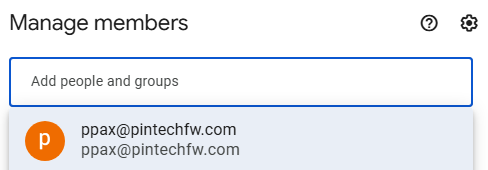
- Once the search result for the group or user appears, click on it
- You can now repeat to add multiple users or groups at once (Note: if you do this, they will all be added with the same permission level, but this can be changed once they are all added)
- Once you've added everyone you want, you can uncheck the "Notify people" box if you don't want an email notification to be sent
- Press "Send" to save the changes (Note: If you unchecked notify, it will say "Share" instead)
Changing Permissions
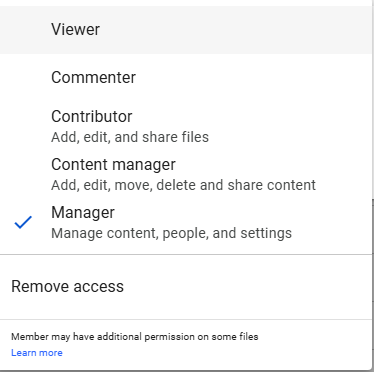
- There are several different access levels for shared drives
- Viewer - read-only access
- Commenter - read-only access + can leave comments on files
- Contributor - read + write access
- Content manager - read + write access, and can move or delete content on the shared drive
- Manager - same as content manager, but can also manage who has access to the shared drive
- Go to Google Drive
- Click into the Shared Drives tab
- On the shared drive you'd like to change the permissions on, click the three dots on the right-hand side and select "Manage Members"
- Find the user whose permission you want to change from the list of members
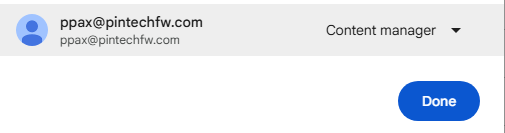
- Select the drop-down box on their listing and select the new desired permission level.
- Once you've changed a permission, the "Done" button will say "Save"
- Click this button once you've made all the changes you would like to make!