
Sending Email to the Group
In Outlook Web
- Go to outlook.office.com
- Click "New mail" and in the "To" field search for the name of the group
- Alternatively, you can send from the groups page
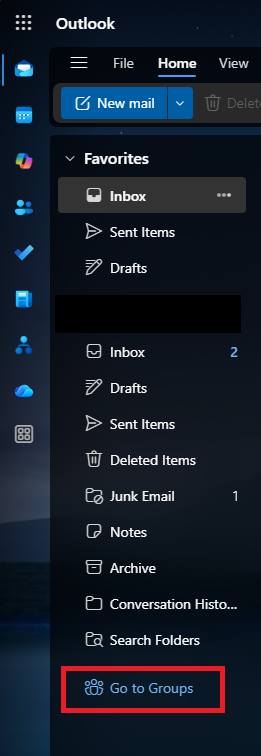
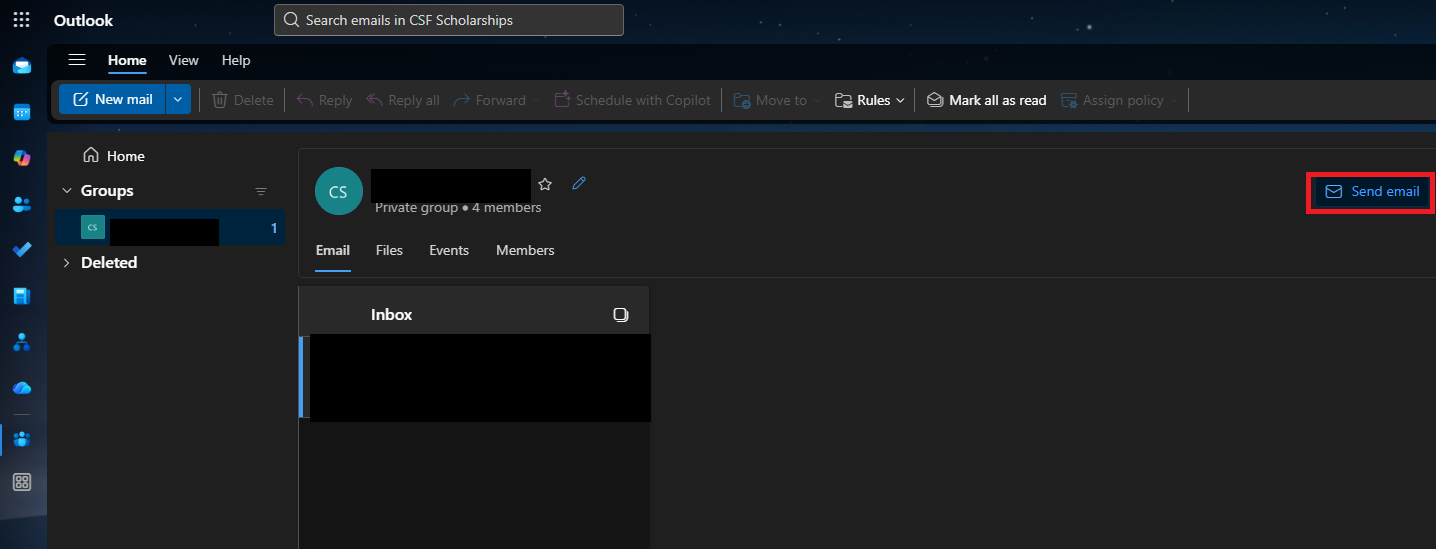
- Here you will see the M365 Group Listed
- Click the "Send Email Button"
In Outlook Desktop (New)
- Open Outlook Desktop
- Click "New mail" and in the "To" field search for the name of the group
- Alternatively, you can send from the groups page
- Here you will see the M365 Group Listed
- Click the "Send Email Button"
In Outlook Desktop (Classic)
- Open Outlook Desktop
- Click "New Email" and in the "To" field search for the name of the group
- Alternatively, you can click on the group then press "New email" and it will automatically fill in the "To" field
Management (Add/Remove Users)
In Outlook Web
- Go to outlook.office.com and click on"Go to Groups" in the left-hand menu
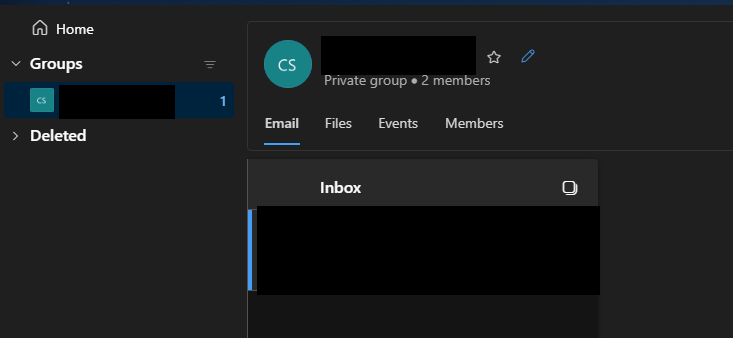
- Here you will see the M365 Group Listed
- Click the Pencil icon next to the group name to edit the membership of the group
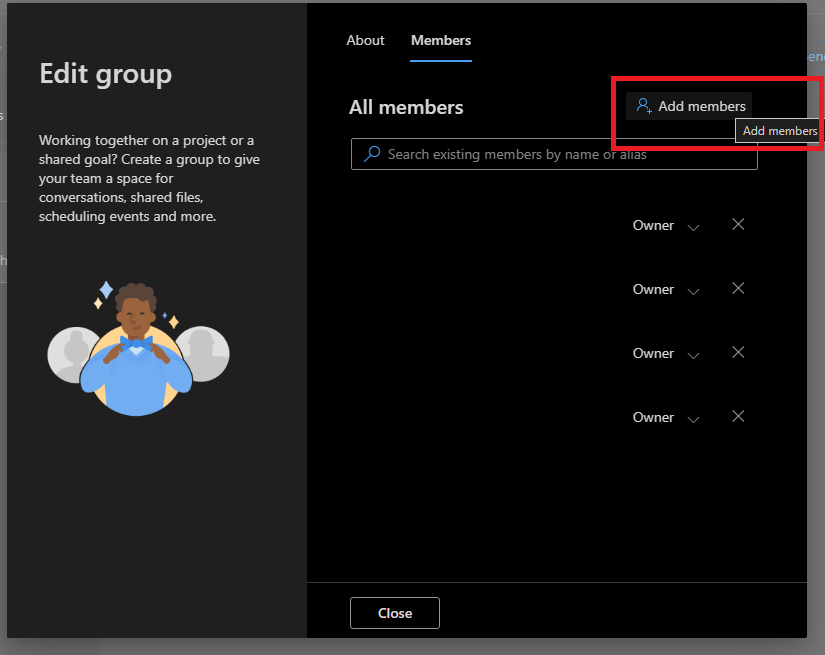
- Change the tab at the top to "Members"
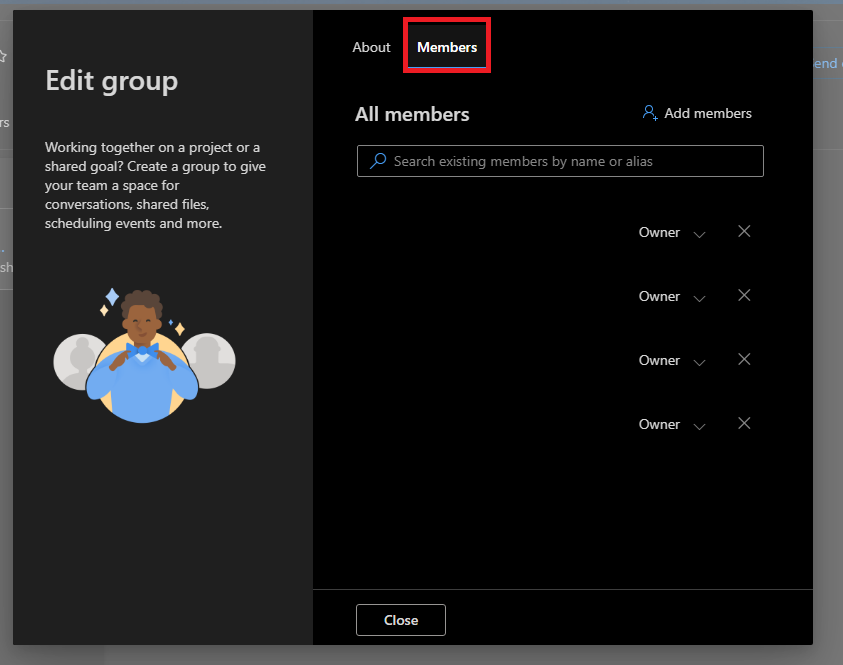
- Click "Add Members"
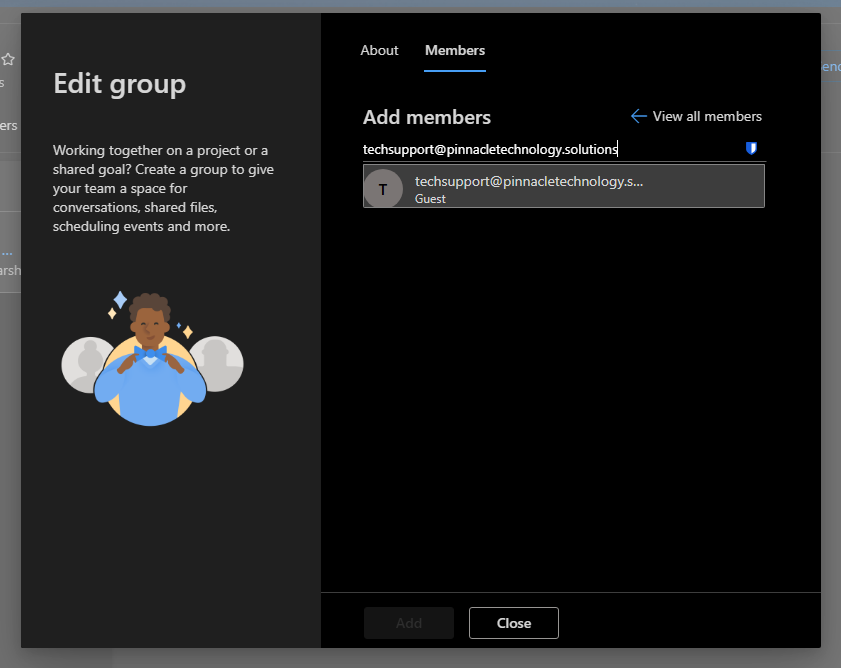
- Type in the email address you wish to add, it will show up with "Guest" under it if it's an external address
- You can press enter or click on the item that showed up to add it to the list
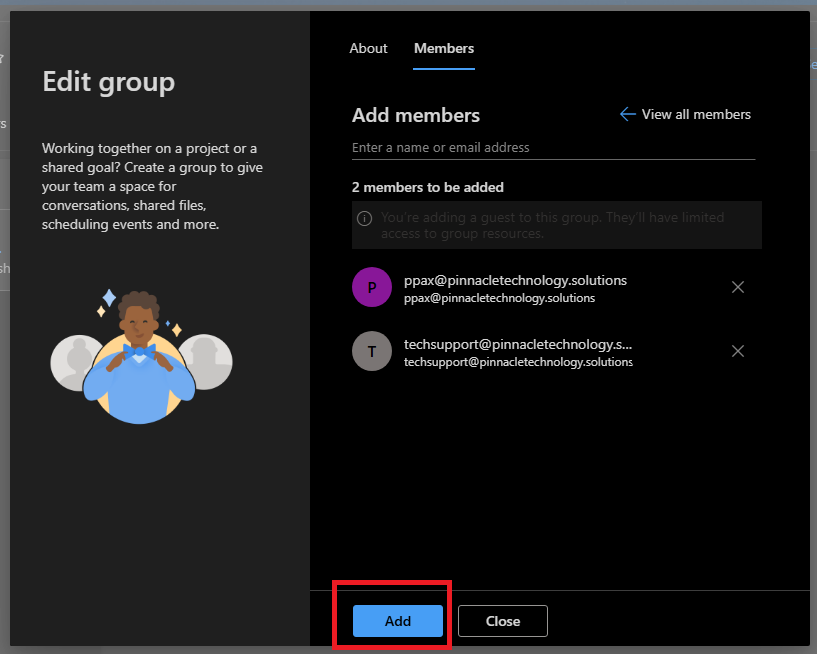
- If you have more than one email you need to add then you can keep repeating this until you have all the new members you want in the list
- Once you've gotten everyone remember to hit the blue "Add" button at the bottom to confirm the changes. (Don't close until you see the "X members added successfully." banner)

In Outlook Desktop (New)
- Open Outlook Desktop and click on"Go to Groups" in the left-hand menu
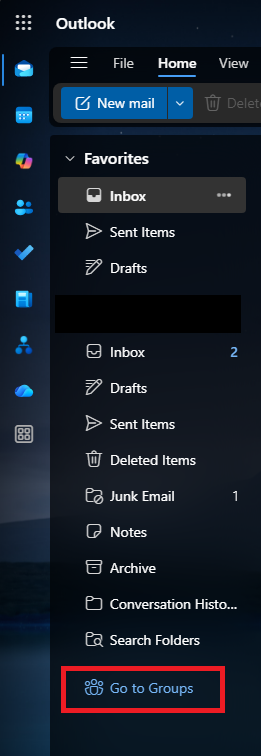
- Here you will see the M365 Group Listed
- Click the Pencil icon next to the group name to edit the membership of the group
- Change the tab at the top to "Members"
- Click "Add Members"
- Type in the email address you wish to add, it will show up with "Guest" under it if it's an external address
- You can press enter or click on the item that showed up to add it to the list
- If you have more than one email you need to add then you can keep repeating this until you have all the new members you want in the list
- Once you've gotten everyone, remember to hit the blue "Add" button at the bottom to confirm the changes. (Don't close until you see the "X members added successfully." banner)
In Outlook Desktop (Classic)
- Open Outlook Desktop and expand "Groups" in the left-hand menu
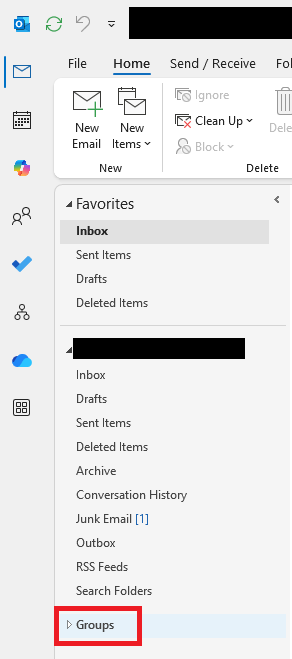
- Click on the group you want to manage
- In the top menu bar, click on "Group Settings."
- Click "Edit Group"
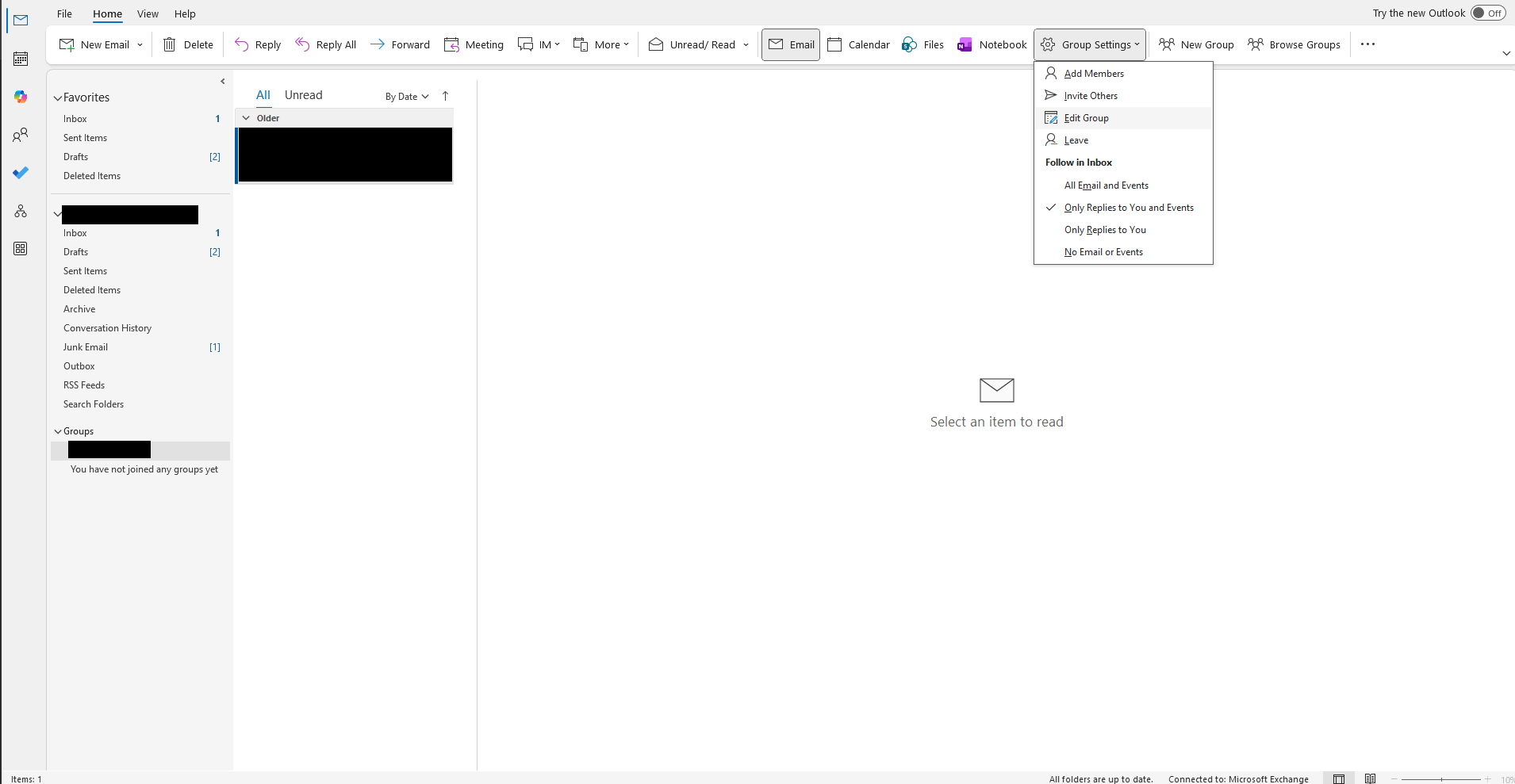
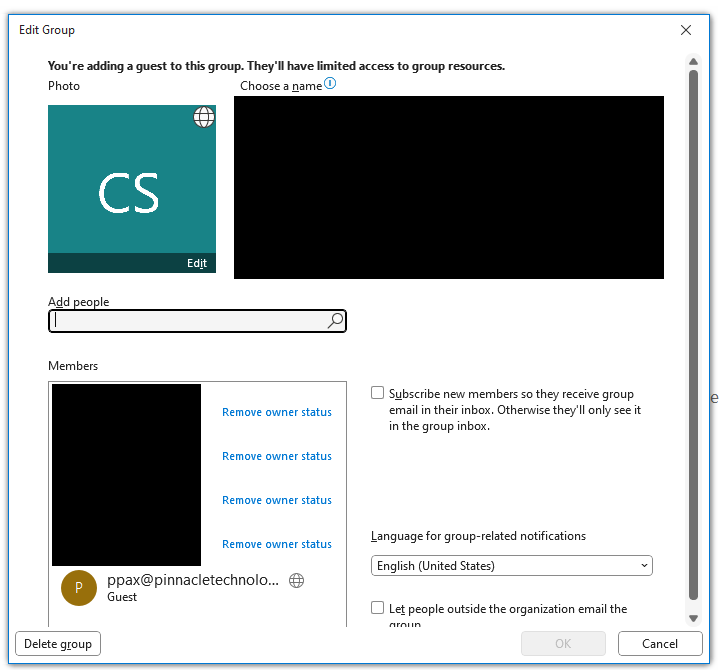
- You'll see this page, in the bottom left, is where you can add/remove people
- To add, type their email address into the text box under Add people and press enter. You'll see them added to the membership list below
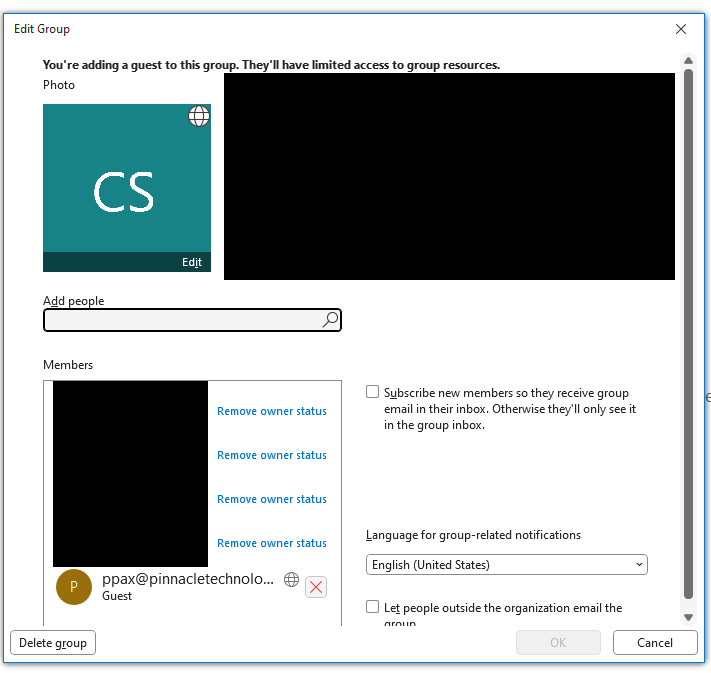
- To remove people, mouse over their entry on the Members list and click the red X
- To save changes, click "OK".