
Note: Pinnacle will need to send you the BitLocker key for your device before you can complete these instructions
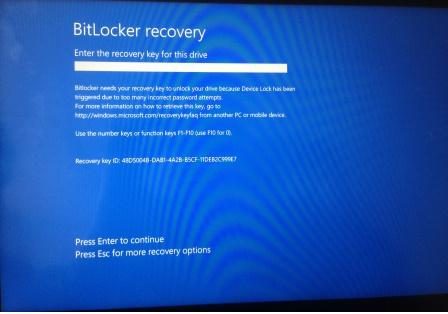
ESC for More Recovery Options
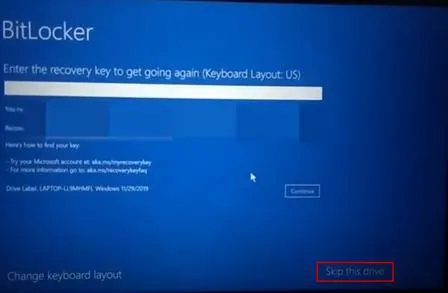
- Click "Skip this drive"
- Click "Advanced Options"
- Click "Troubleshoot"
- Click "Advanced Options"
- Click "Command Prompt"
- In the Command Prompt, enter in this: (Note: xxxxxx-xxxxxx....... is the BitLocker key we sent you)
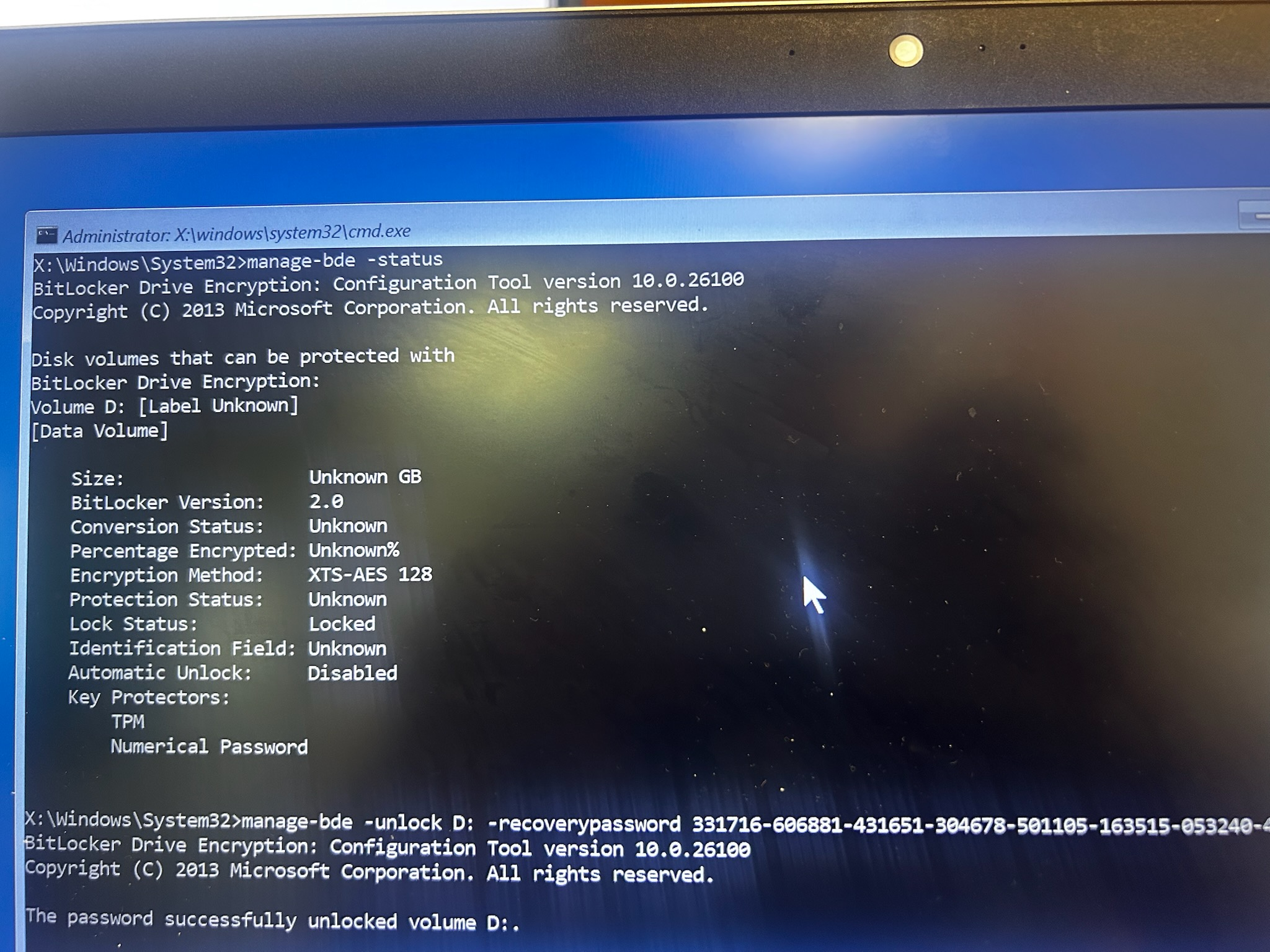
manage-bde -status
Note: Review the output to see which volume is currently locked (e.g., "Volume D:"). Because the recovery environment can reassign letters, the OS drive may not always be C:. You must use the specific drive letter identified here for the next steps.
manage-bde -unlock <DriveLetter>: -recoverypassword xxxxxx-xxxxxx.......
manage-bde -protectors -disable <DriveLetter>:
- Continue into Windows 11 or just power cycle the machine
If you were coming back to the BitLocker screen repeatedly, you'll probably get Automatic Repair, and then do this:
- Click "Advanced Options"
- Click "Troubleshoot"
- Click "Advanced Options"
- Click "System Restore"
It should bring up a system restore screen
Click next to see the Restore points
Select the date that was before the computer stopped working
Hit continue/next/finish on all prompts - it should reboot in 5-10 minutes and go back to the sign on screen